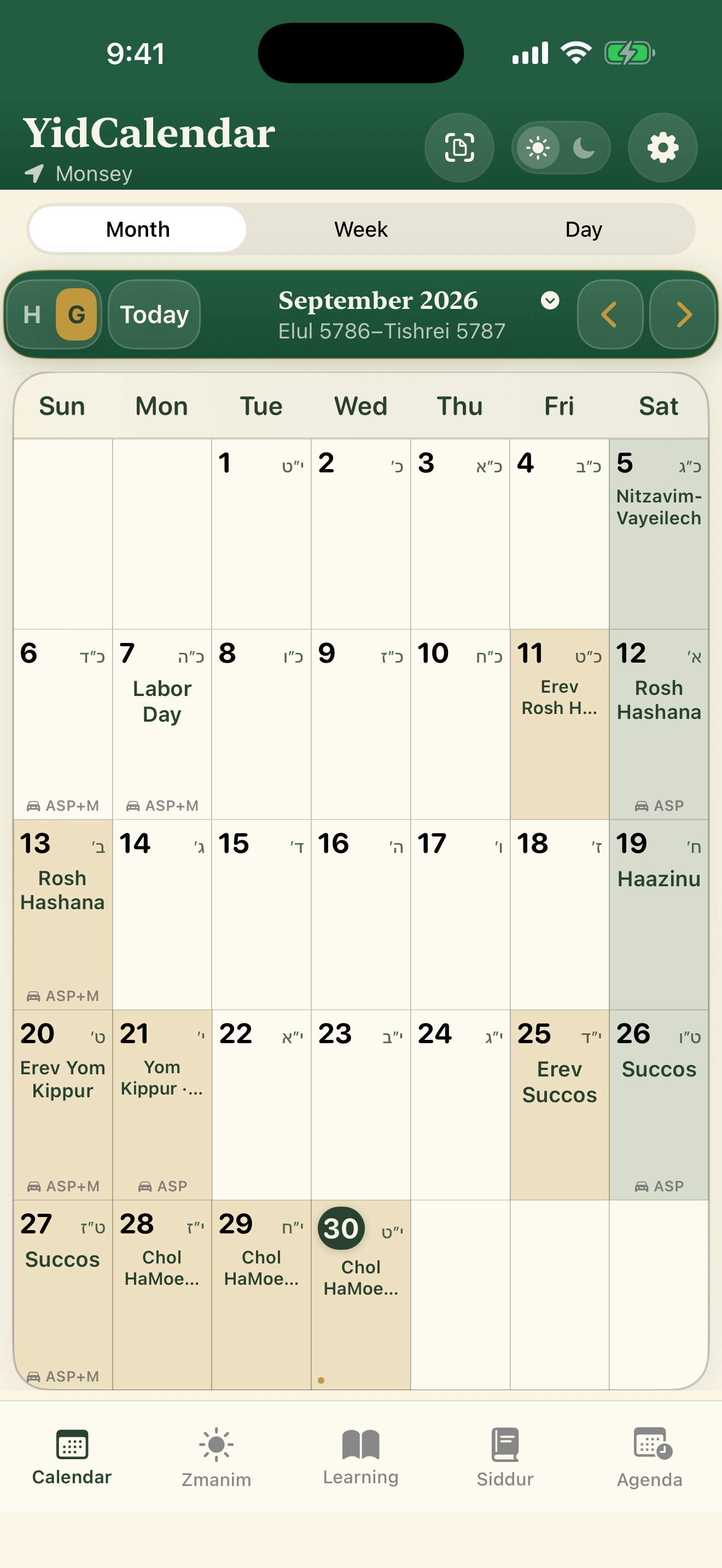
See both calendars together
Follow Hebrew and Gregorian dates, holidays and parsha in one month view.
The Jewish calendar for everyday life
From the first zman to the next simcha. Bring your calendar, daily learning, tefillos and everyday plans into one thoughtful place.
For iPhone, iPad and Android.
Explore real app screens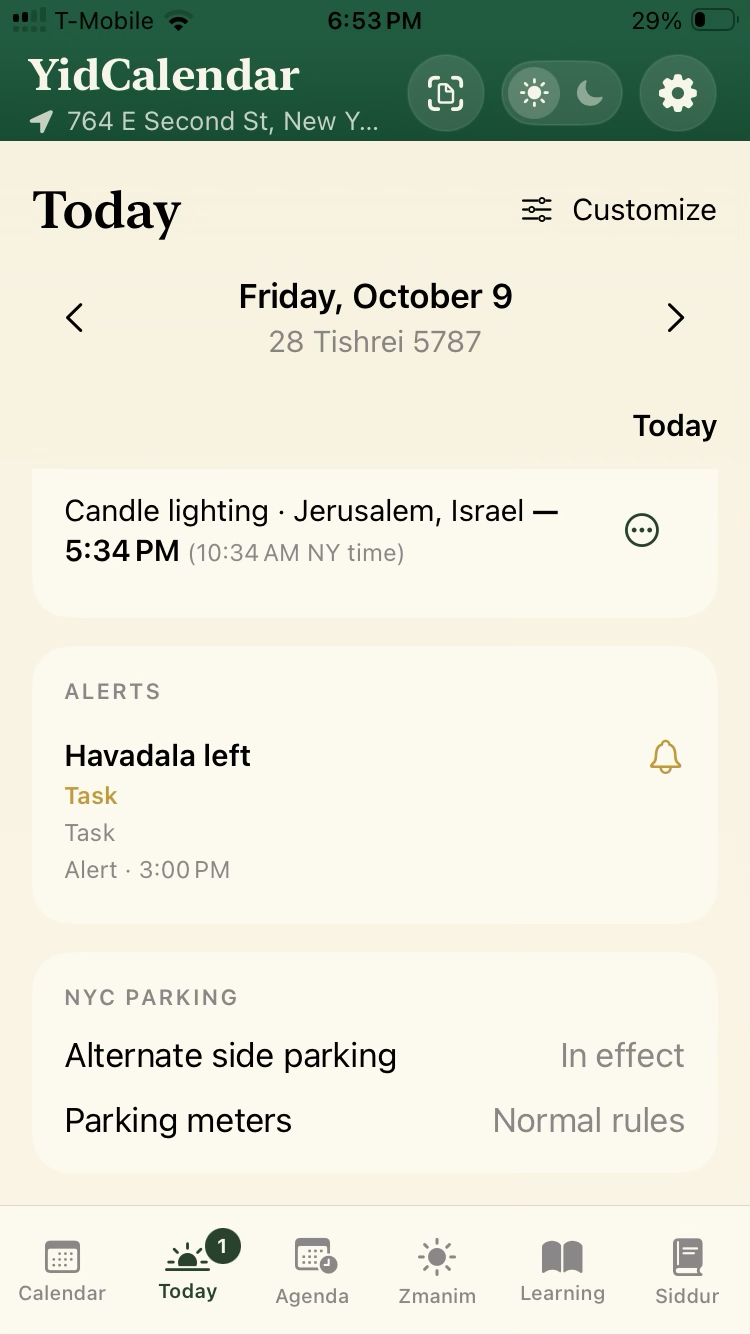
A closer look
Move between your calendar, zmanim and Agenda. Set the reminders you need and keep your next plans close at hand.
Follow Hebrew and Gregorian dates, holidays and parsha in one month view.
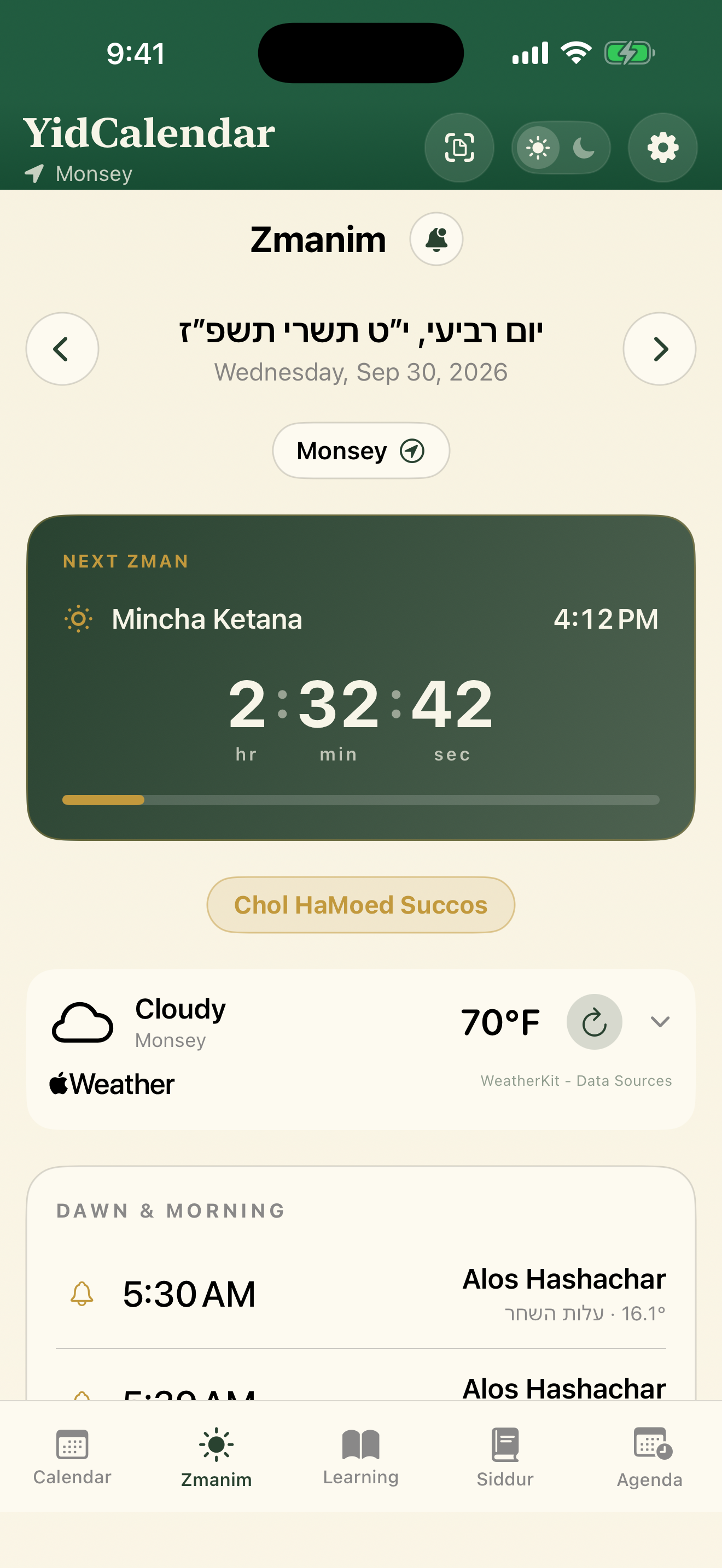
Check local times, follow the countdown, and choose your alerts.
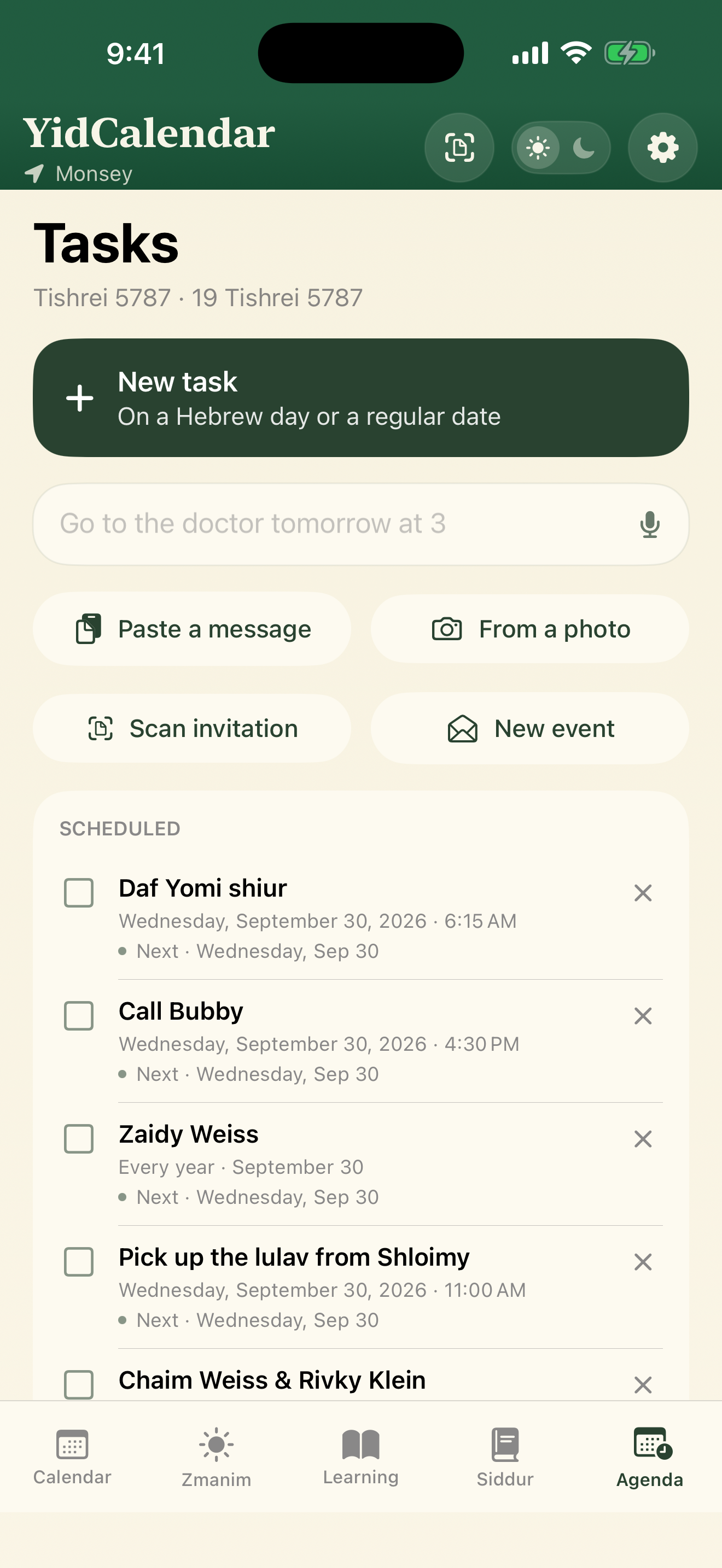
Add tasks, birthdays, yahrzeits and events, with reminders you choose.
Screens from the current iPhone App Store listing. Features and appearance can differ by platform and app version.
Explore the app
Explore the screens you will use every day—from checking candle lighting to remembering the next family simcha.
This guide describes the current iPhone app source. Some features may reach the App Store or Android later. The screenshots above are from the public iPhone listing and may show an earlier layout.
01 / Calendar
View Hebrew and Gregorian dates together, along with holidays, parsha and your personal events.
Try it: Look ahead to a simcha, select its date, and check the day's details before making your plans.
On iPhone, tap Calendar again while it is already selected to cycle through Month, Week and Day.
02 / Zmanim
Check daily halachic times, candle lighting and the next zman, with a countdown to help you plan.
Try it: Set a reminder before shkiah so you have time to prepare.
Open Zmanim and tap the bell. Choose a time or lead time for the zman you want. Enable notification permission on your phone.
03 / Today
Open Today for daily information in one list, without browsing the full month.
Try it: Open Today in the morning to review the day before moving into Calendar or Agenda.
It counts alerts configured for today, including alerts whose time has already passed. It is not a count of unread messages.
04 / Learning
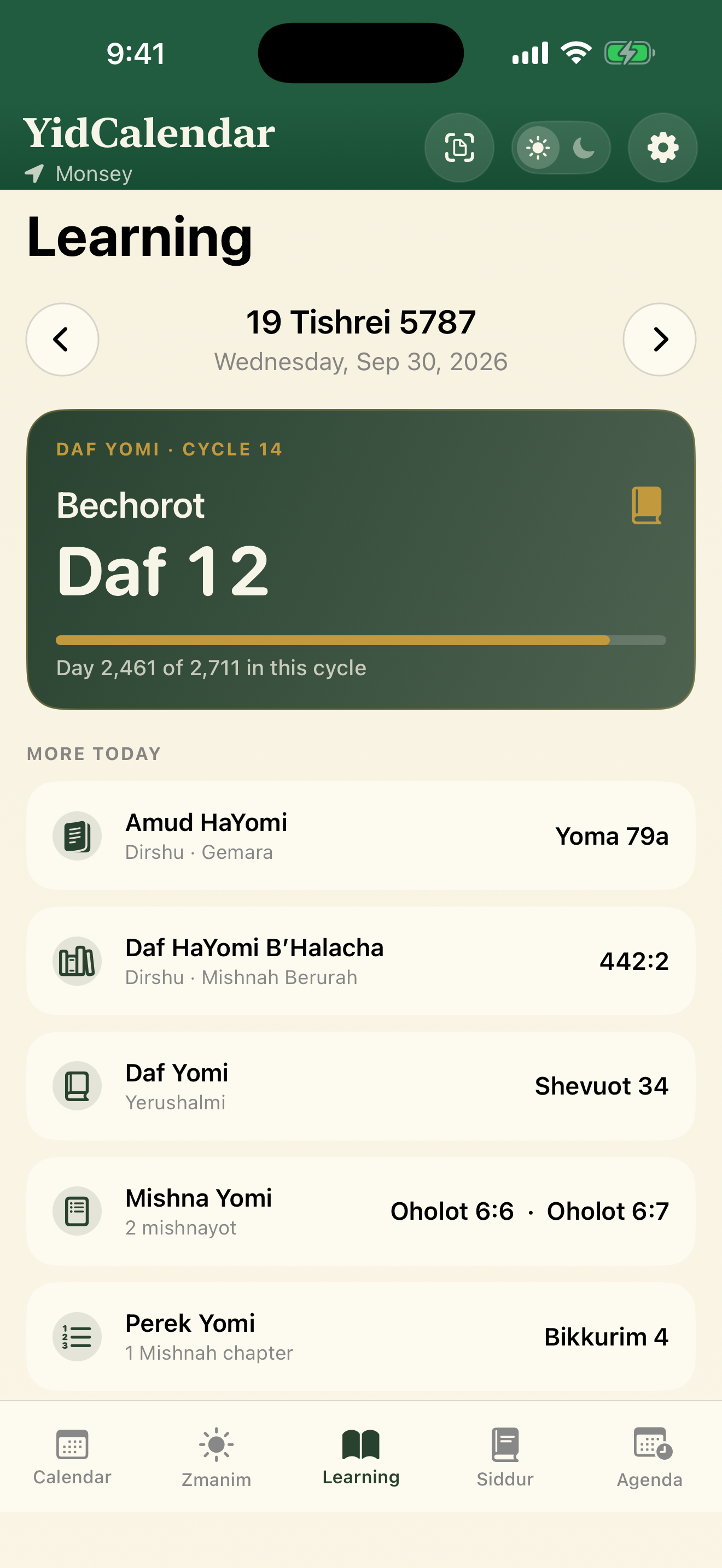
Find the day's place in supported learning schedules, including Daf Yomi, Mishnah, Rambam, Tanach, Tehillim and Dirshu programs.
Try it: Check today's Daf Yomi or Tehillim portion before beginning your regular seder.
Open Settings → Language & Names and choose English or עברית under Learning language.
05 / Siddur
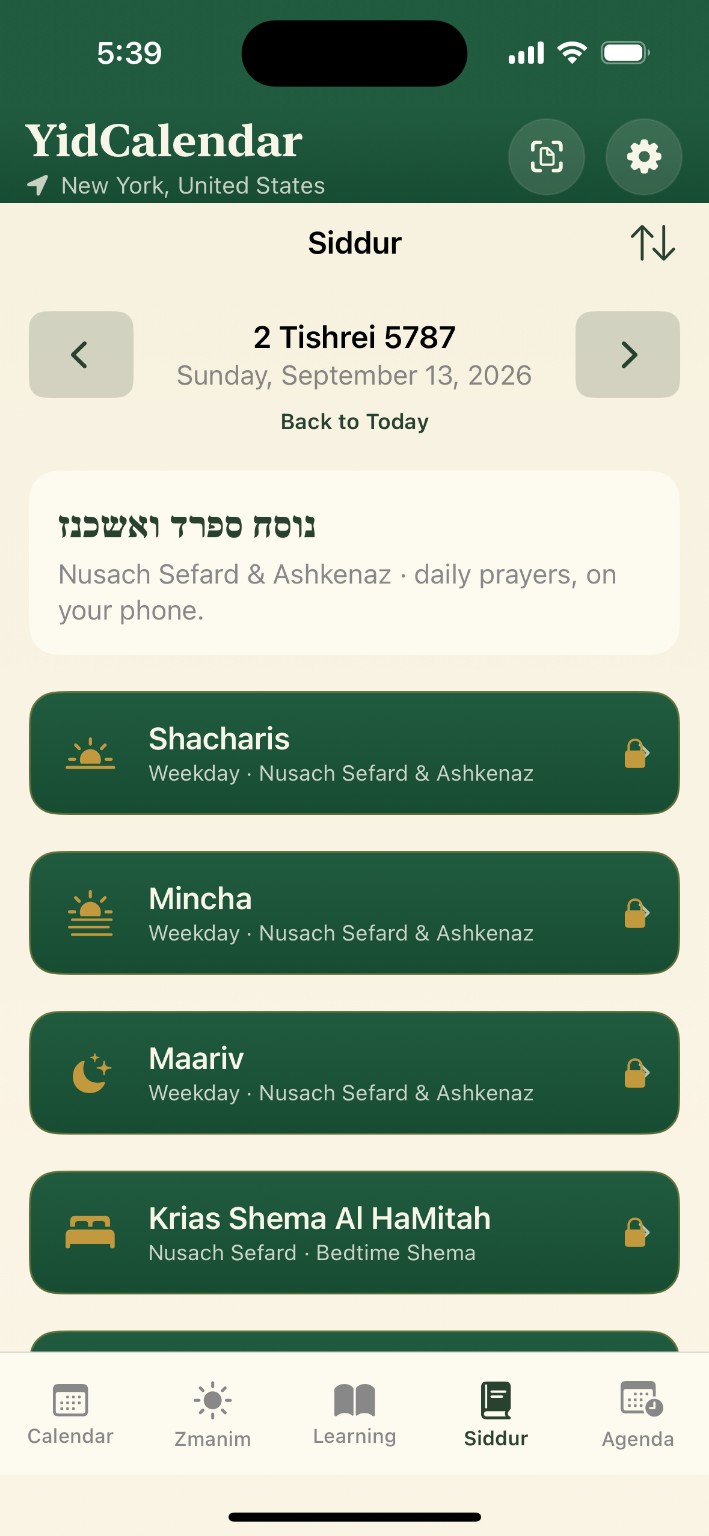
Open Nusach Sefard tefillos and Tehillim, with adjustable text size and prayers arranged for easy navigation.
Try it: When traveling, check the compass, open the tefillah you need and choose a comfortable text size.
Tap the compass at the top of Siddur. It uses your current location or your selected zmanim city.
06 / Agenda
Keep appointments, simchas, birthdays and family yahrzeits together, with reminders and Hebrew or Gregorian dates.
Try it: Scan a wedding invitation, check the names, date, time and venue, then save it with a reminder.
AI scanning asks permission before sending the photo to ChatGPT, by OpenAI. It requires sign-in and internet access. Review and correct the extracted details before saving. Invitation scanning is a Premium feature.
SMS / Text reminders
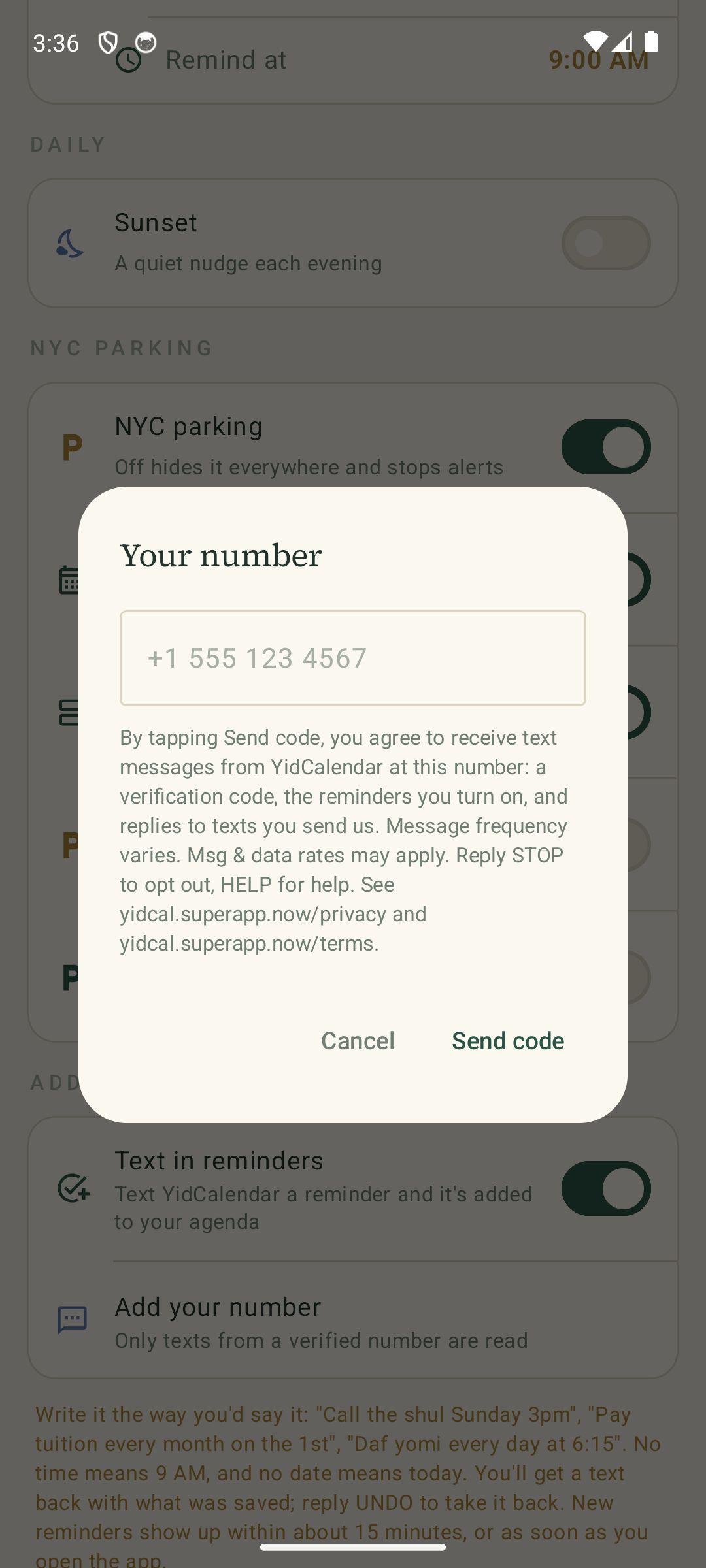
Use optional SMS features to add reminders by text and receive reminder texts on your verified phone.
Illustrative example
Call the office tomorrow at 3 PM
Your reminder is added to Agenda.
Example wording, not a screenshot of a real conversation. SMS availability depends on your app version and setup. Message frequency varies. Message and data rates may apply. Reply STOP to opt out or HELP for help.
See SMS setup and consent details →Make it yours / Settings
Use Settings for location, language, appearance, notifications, accounts and backup.
Try it: Start by choosing your location, then set the language and alerts you prefer.
Open Settings → Help & Guides to find the guided tour and replay it when you need a refresher.
Invitation scanning
Turn a Hebrew or English invitation into an event, without typing every detail yourself.
Invitation scanning is a Premium feature. AI reading requires sign-in, internet access and your permission.
Watch the app preview ↗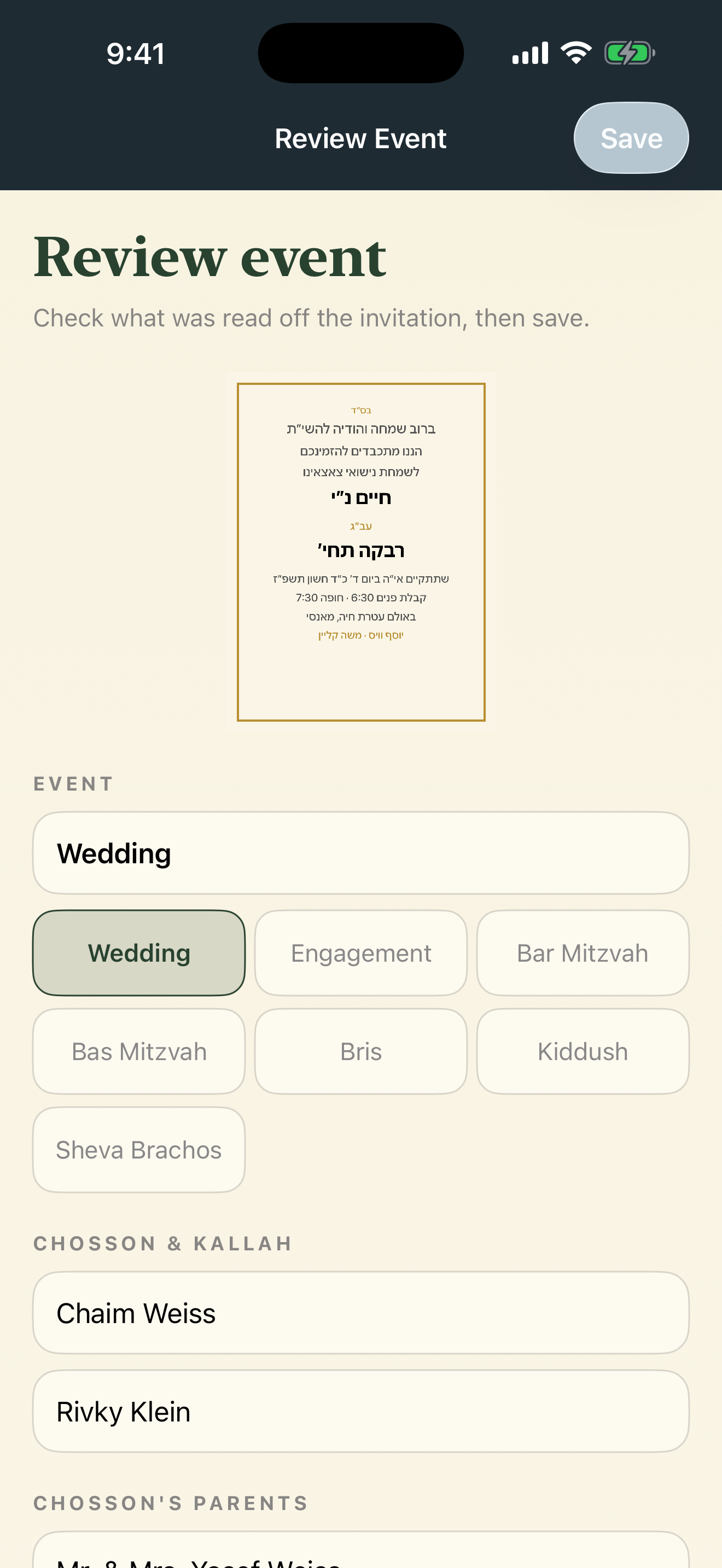
Follow daily learning schedules and open the Siddur, with text size you can adjust.
See Alternate Side Parking and meter suspension information alongside your calendar.
Core calendar and zmanim calculations run on your device. Choose whether to use account sync and AI scanning.
Start with your calendar and local zmanim. Add the tasks, events and reminders that make the day yours.
On the App Store and Google Play.
The app includes calendar and zmanim tools, with Premium features such as invitation scanning. Check the subscription screen in the app for current plans, pricing and any available trial before subscribing.
Download it from Google Play. Already a tester? The Android page still has the testing links.
Core calendar and zmanim calculations run on your device. Account sync and other online features are optional; some features require an account or internet connection.